Jump to a step
The video has no sound: the captions on screen explain each step, and every step is written out below with a picture.
- 1
Open Orders
Open Orders under Store. The cards count Total Orders, Pending, In Progress and Delivered; the newest order is at the top.
Find an order with Search orders... (order number or name) or the status filter.
- 2
Open the order
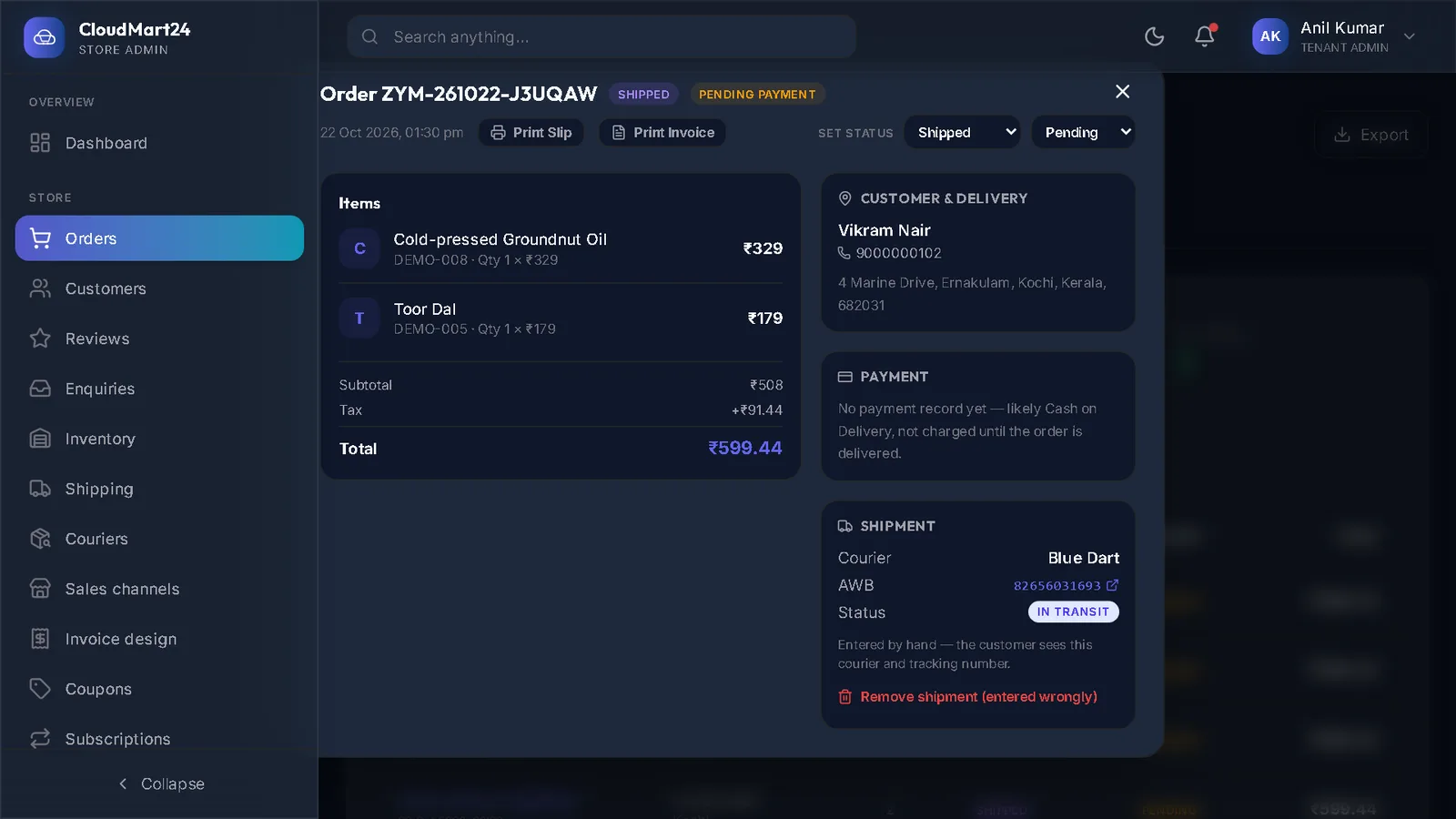
Click the order. Its window shows the Items, the Customer & Delivery address, the Payment and the Shipment.
- 3
Print the packing slip and invoice
Print Slip opens the packing slip — address label, cash to collect, and the packing list. Print Invoice opens the GST invoice. Both open in a new tab, ready to print or save as PDF.
- 4
Mark it packed
When the parcel is ready, press Mark packed in the Shipment box.
- 5
Ship it
Choose how it was shipped. With your own courier, pick Shipped myself, choose the Courier, type the Tracking number (AWB) from the courier’s receipt, and press Save & mark shipped.
With Delhivery connected, Book with Delhivery books the pickup and gets the tracking number by itself — see Ship an order.
- 6
Mark it delivered
When it arrives, choose Delivered in Set status. A cash-on-delivery order is marked Paid at the same time. Orders booked with Delhivery move to Delivered by themselves.
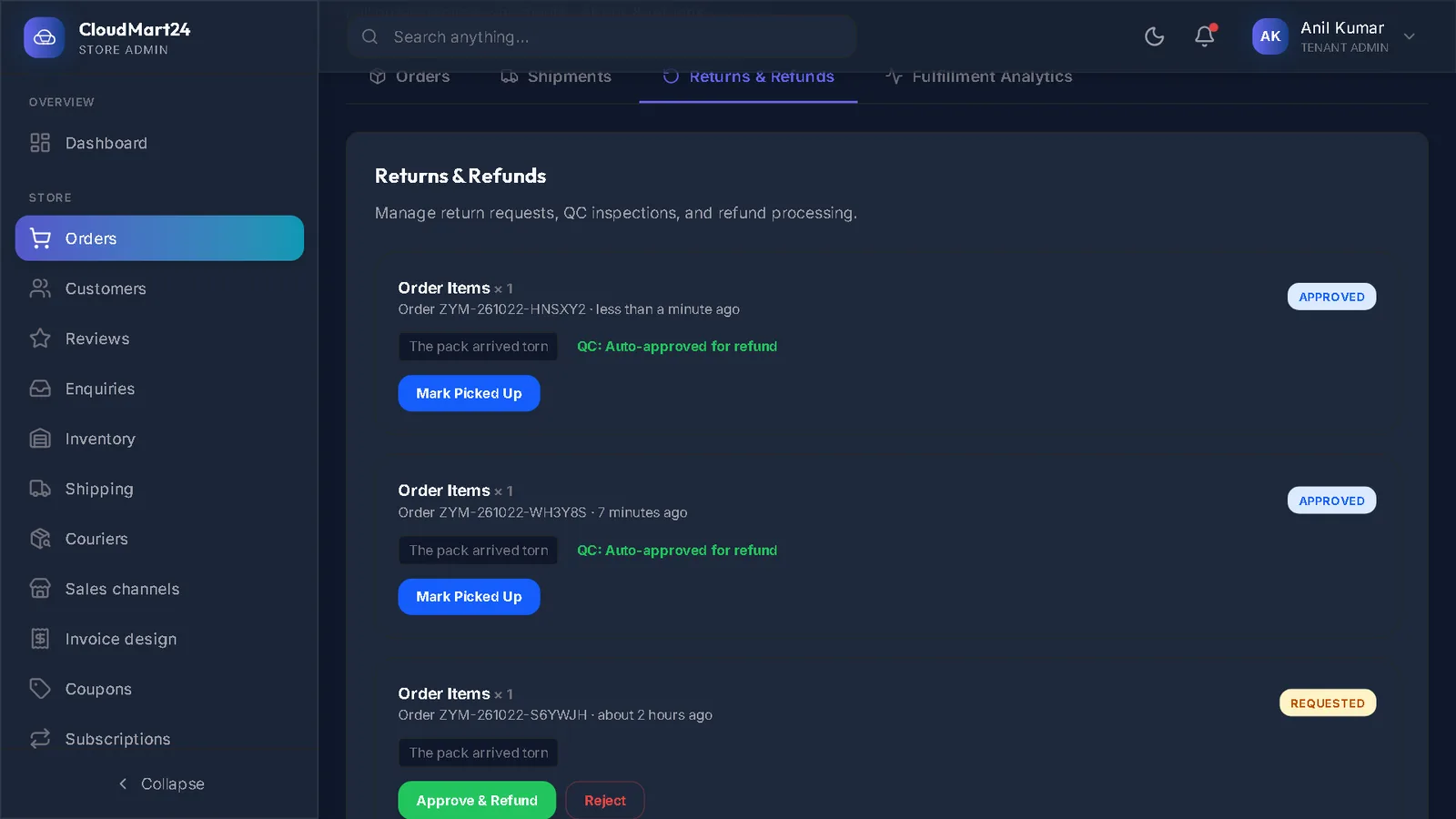
Careful: Choosing Cancelled in Set status only changes the status. It does not refund an online payment — use Returns & Refunds for that.
- 7
Download your orders
Export on the Orders page downloads the list as a spreadsheet (CSV).
Questions
An order says Pending, not Confirmed.
It is waiting for its online payment to complete. If the shopper never finishes paying, it stays Pending; you can open it and set the status yourself.
Shipped is refused.
An order can only be marked Shipped together with its shipment — the tracking number from Shipped myself, or a Delhivery booking.
Stuck on a step?
Book a short call and we will walk through it with your own shop on screen. Book a call