Jump to a step
The video has no sound: the captions on screen explain each step, and every step is written out below with a picture.
- 1
Find a section to add
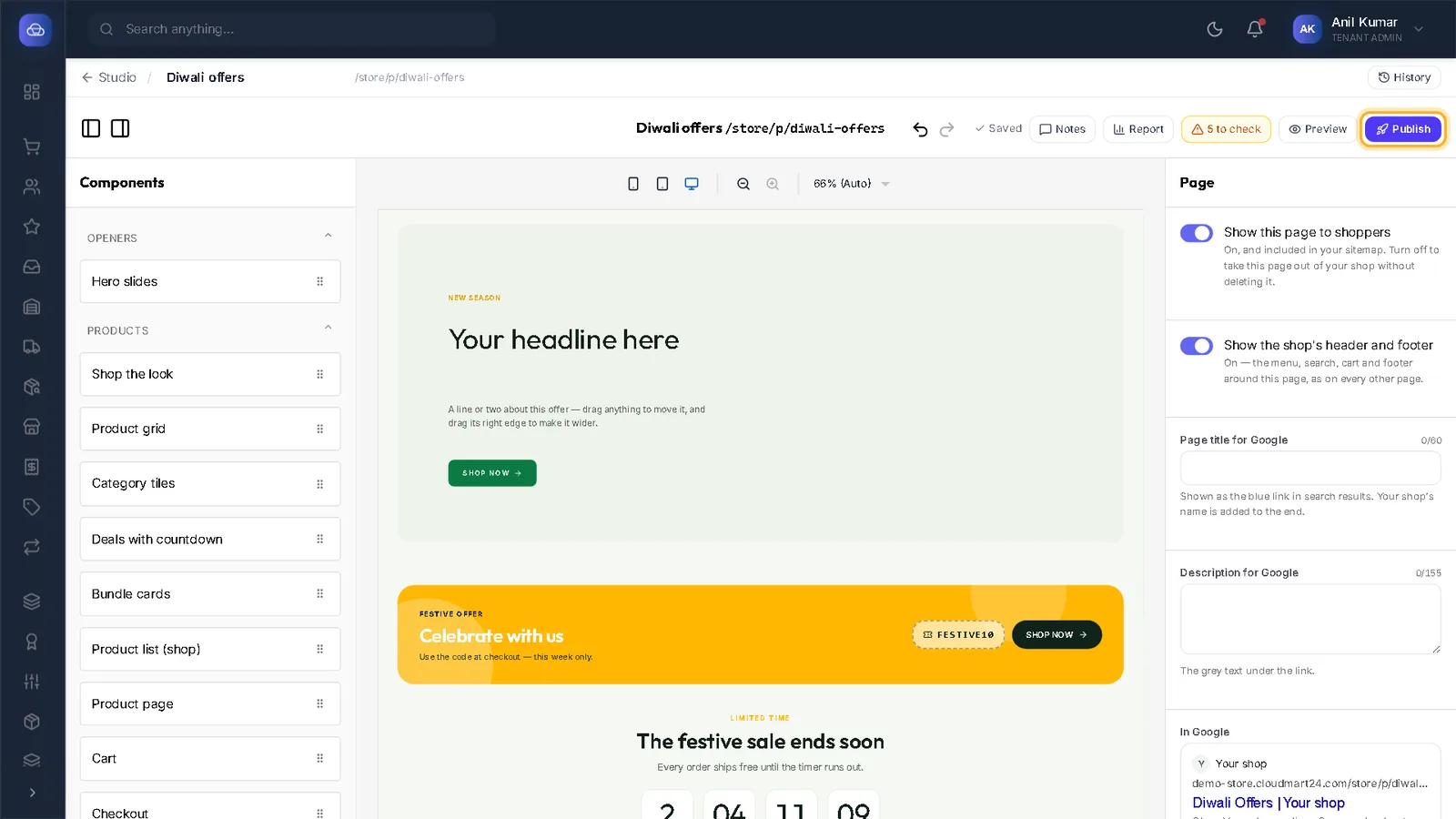
The Components list on the left groups the sections: Openers, Products, Stories & pictures, Trust, Engage and Layout. Only the sections your design can draw are listed.
- 2
Drag it onto the page
Hold the mouse on a section, drag it over the page, and let go where it should sit. A line shows where it will land. Then fill in its settings on the right.
- 3
Duplicate or delete a section
Click a section: a small bar appears on it with Duplicate and Delete.
- 4
Move a section
Drag the section to its new place on the page — or in the Outline list under Components, which is easier on a long page.
- 5
Hide it, or show it only for a while
With the section selected, scroll the right panel down. Hide this section takes it off the shop without deleting it.
Show only between dates shows it from one day to another — handy for a sale banner that should disappear by itself.
- 6
Publish
Press Publish when the page is right.
Questions
A section I want is not in the list.
Each design draws its own set of sections. Flexible section and Free design (under Stories & pictures) let you build almost anything from text, buttons and pictures.
Is there a limit?
A page can hold up to 40 sections. Shorter pages load faster and are read more.
Stuck on a step?
Book a short call and we will walk through it with your own shop on screen. Book a call