Jump to a step
The video has no sound: the captions on screen explain each step, and every step is written out below with a picture.
- 1
Open the page in Studio
Open Studio under Customize. On the Pages tab, find the page — Home, say — and press Edit.
- 2
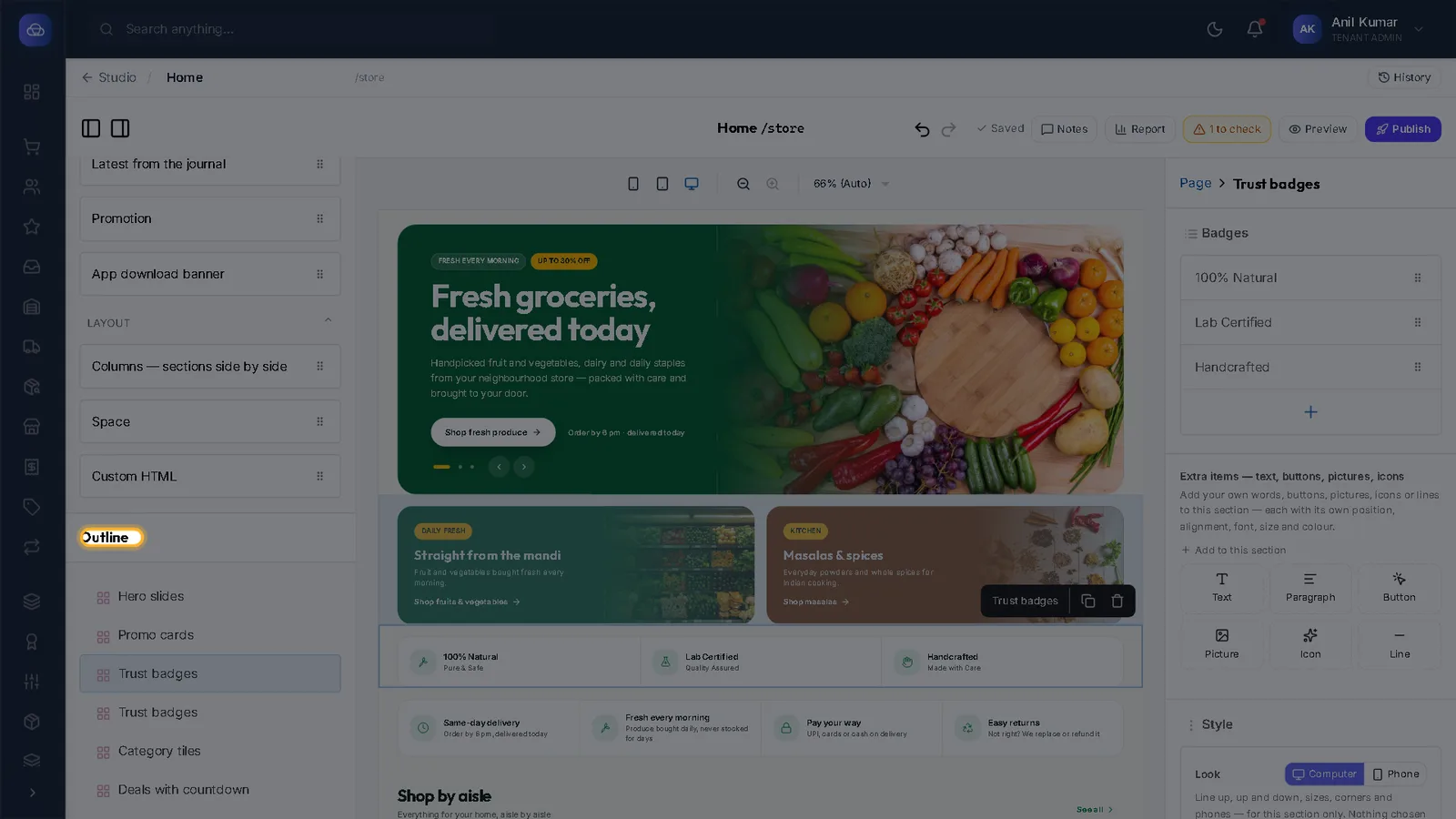
Know the three panels
The editor has three parts:
- Components on the left — the sections you can add.
- Your page in the middle, exactly as shoppers will see it.
- On the right, the settings of whatever you clicked — or of the whole page (its Google title and description) when nothing is selected.
- 3
Click something to change it
Click a heading, a button or a picture on the page. Its section is selected, and the matching box on the right opens and lights up. Change the words there.
- 4
Or type straight on the page
Double-click words on the page and type over them. Press Enter (or click away) to keep the change; Esc throws it away.
- 5
Change a picture
Click the picture, then press Change picture on the right. Upload a new one or pick one from your library, click its most important part, describe it, and press Use this picture.
Picture for phones (optional) lets you give phones a taller or closer picture of the same thing.
- 6
Check it on a phone
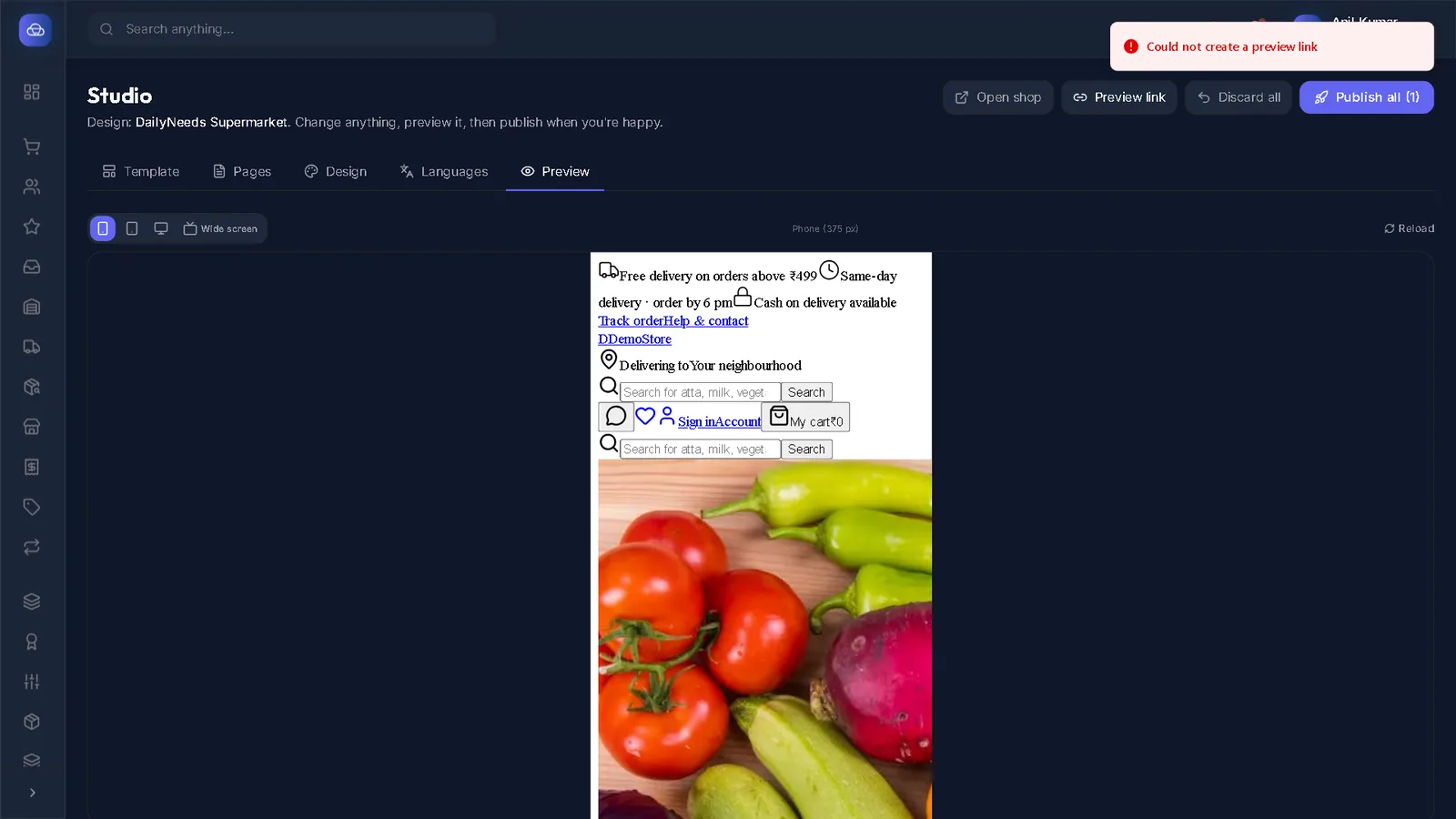
The three buttons above the page show it on a phone, a tablet and a computer. Most shoppers use phones — always look at the phone view before publishing.
- 7
It saves itself
A moment after each change the top bar says Saved: it is kept as a draft. The arrows next to it undo and redo.
- 8
Publish
Press Publish. The message Published. Your shop is updated. means shoppers now see the new version.
Tip: Changed your mind after publishing? History at the top right lists every published version, and any of them can be restored.
Questions
I changed something but the shop looks the same.
Press Publish on the page. Then reload the shop — if it still shows the old version, press Ctrl+Shift+R (or pull down to refresh on a phone).
Can two people edit at the same time?
Studio shows who else has the page open. If someone else saved first, it asks whether to load their version or keep yours.
Stuck on a step?
Book a short call and we will walk through it with your own shop on screen. Book a call