Jump to a step
The video has no sound: the captions on screen explain each step, and every step is written out below with a picture.
- 1
Sign in
Go to admin.cloudmart24.com, type your Email Address and Password, and press Sign In →. Store owners land on the dashboard.
- 2
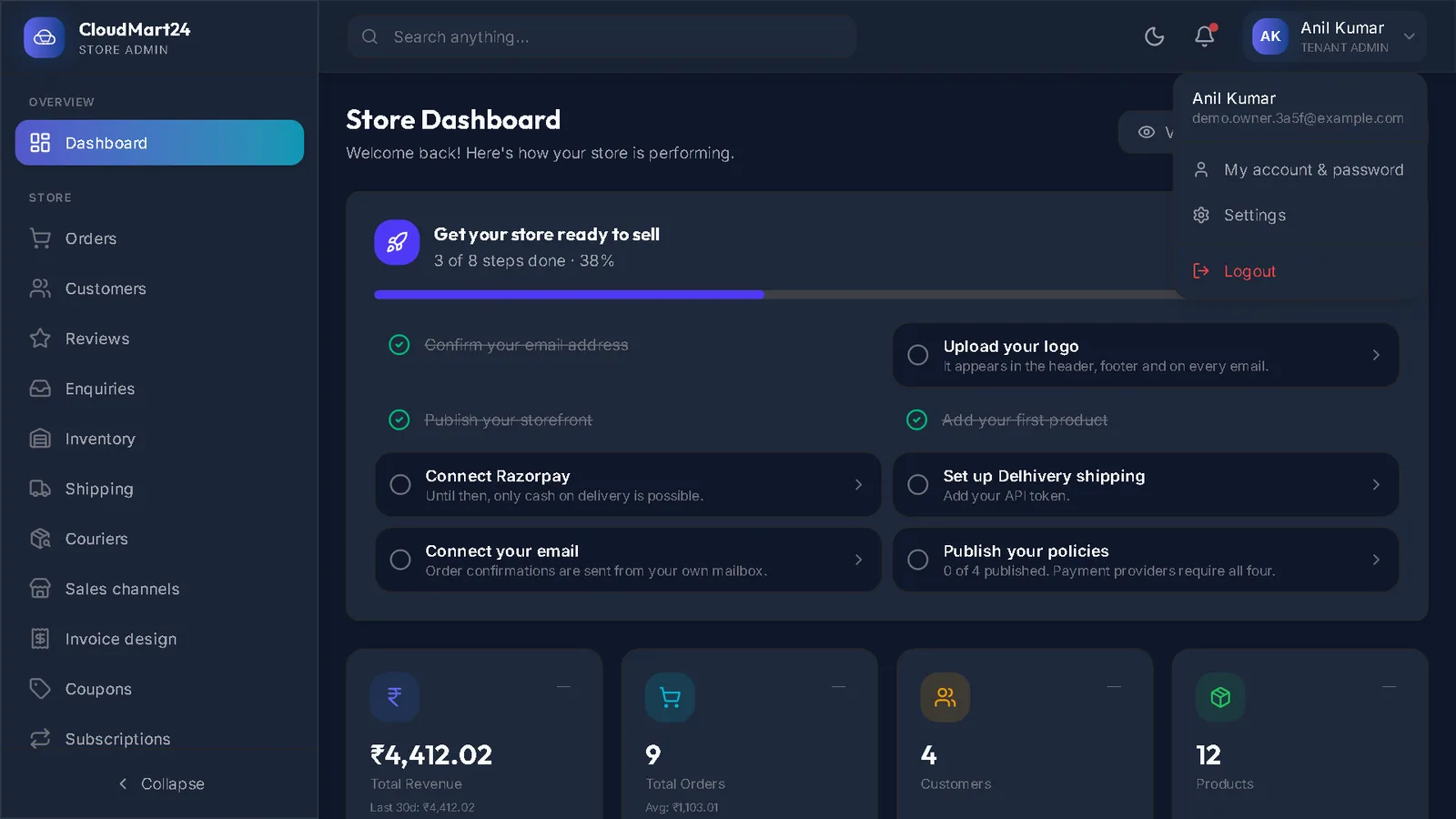
Open My account
Click your name at the top right and choose My account & password. The page shows your name, email and role.
- 3
Change your password
Under Change password, type your Current password, then the New password twice.
Press Change password. A message confirms it — use the new password next time you sign in.
- 4
Forgotten it? Get a reset link
On the sign-in page press Forgot password?, type your Email address and press Send reset link →.
The email has a link that works for one hour. It opens Choose a new password: type it twice and press Save new password.
Questions
The admin says "Your password is not safe".
Your password has appeared in a leak from some other website. Press Change password in the banner and choose a new one you use nowhere else.
I see "This area is for store staff".
You signed in with a shopper account — one made while buying from a shop. Sign out and sign in with the email you used to create your store.
Stuck on a step?
Book a short call and we will walk through it with your own shop on screen. Book a call