Jump to a step
The video has no sound: the captions on screen explain each step, and every step is written out below with a picture.
Before you start
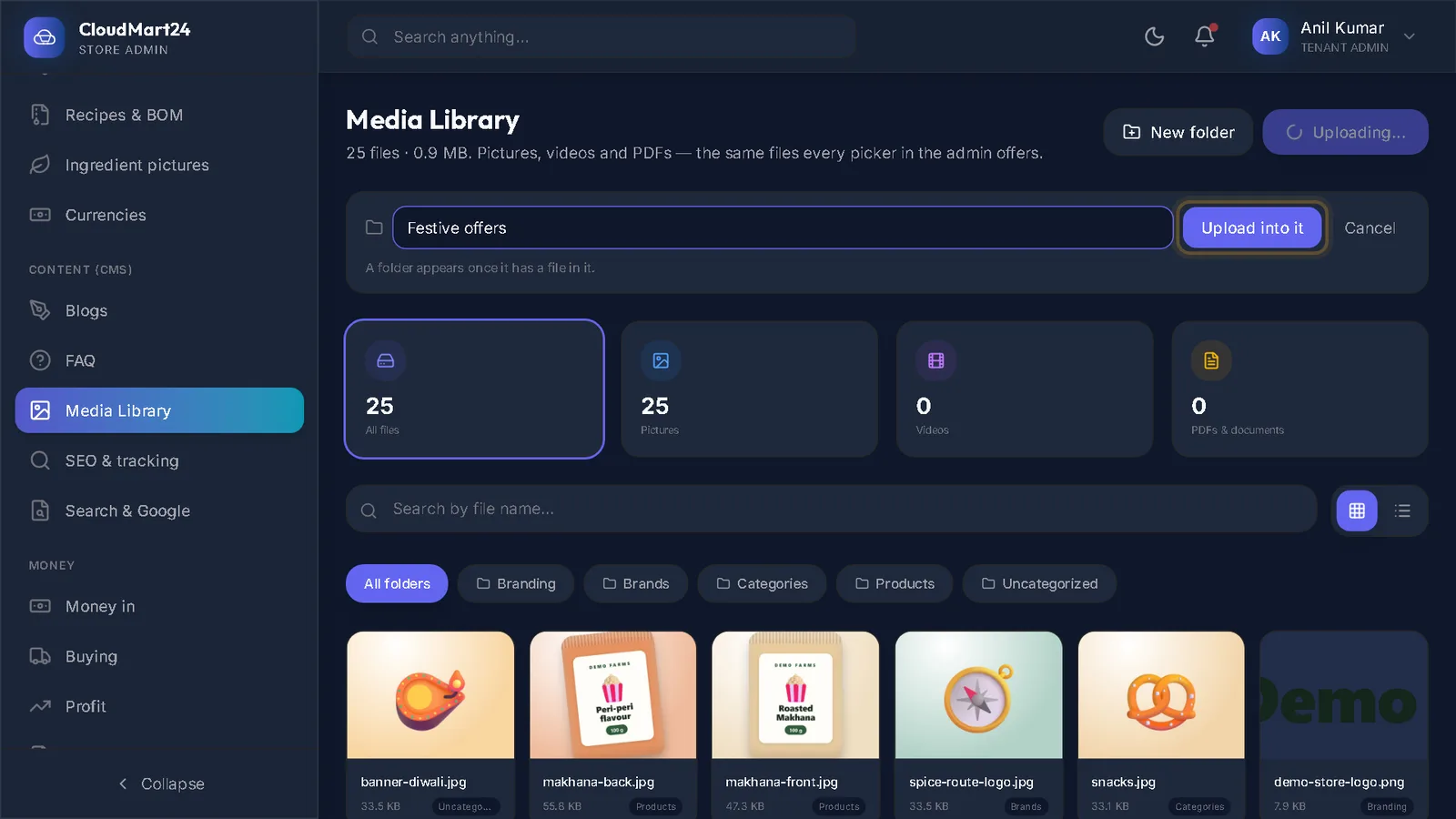
- The banner picture uploaded to your Media Library — copy its address there with Copy address.
- 1
Open Banners
Open Banners under Customize. The cards show how many times your banners were seen and clicked.
- 2
Create a banner
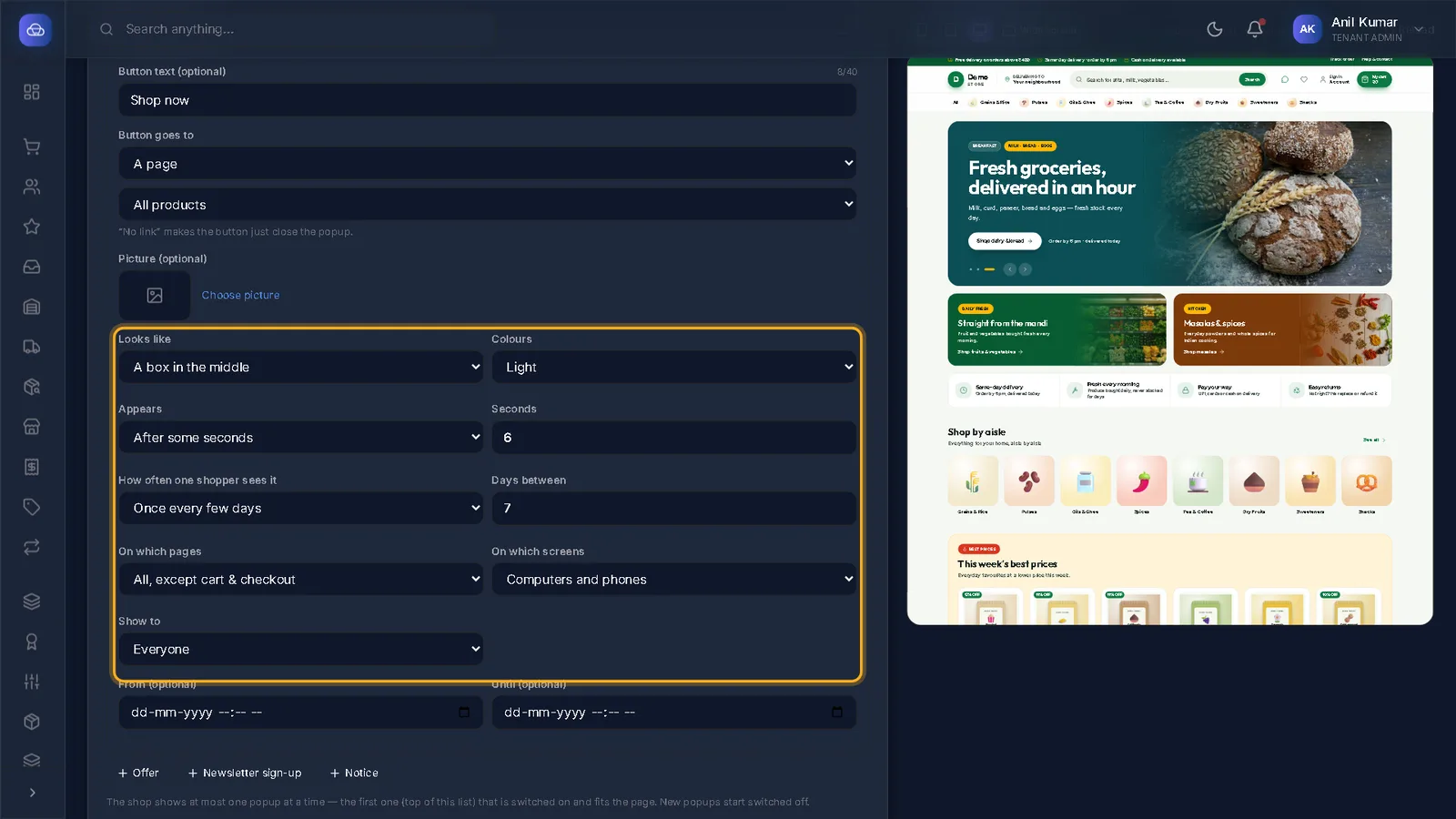
Press Create Campaign. Give it a name and an optional subtitle, and choose Where it shows: a strip across the top, a popup after a few seconds, a popup when the shopper is about to leave, or a bar along the bottom on phones.
- 3
Link, picture and dates
Fill where a click goes (Redirect URL, for example /store/products), paste the Banner Image URL, choose Active and the start and end dates, and press Save Campaign.
- 4
Switch it off or delete it
Point at a banner in the list for its on/off button and Delete.
Stuck on a step?
Book a short call and we will walk through it with your own shop on screen. Book a call