Jump to a step
The video has no sound: the captions on screen explain each step, and every step is written out below with a picture.
- 1
Open Popups
Open Header & footer in Studio and scroll to Popups.
- 2
Add a popup
Press + Offer, + Newsletter sign-up or + Notice. Give it a Name only you see, a Heading, the Text and — for an offer — the Offer code.
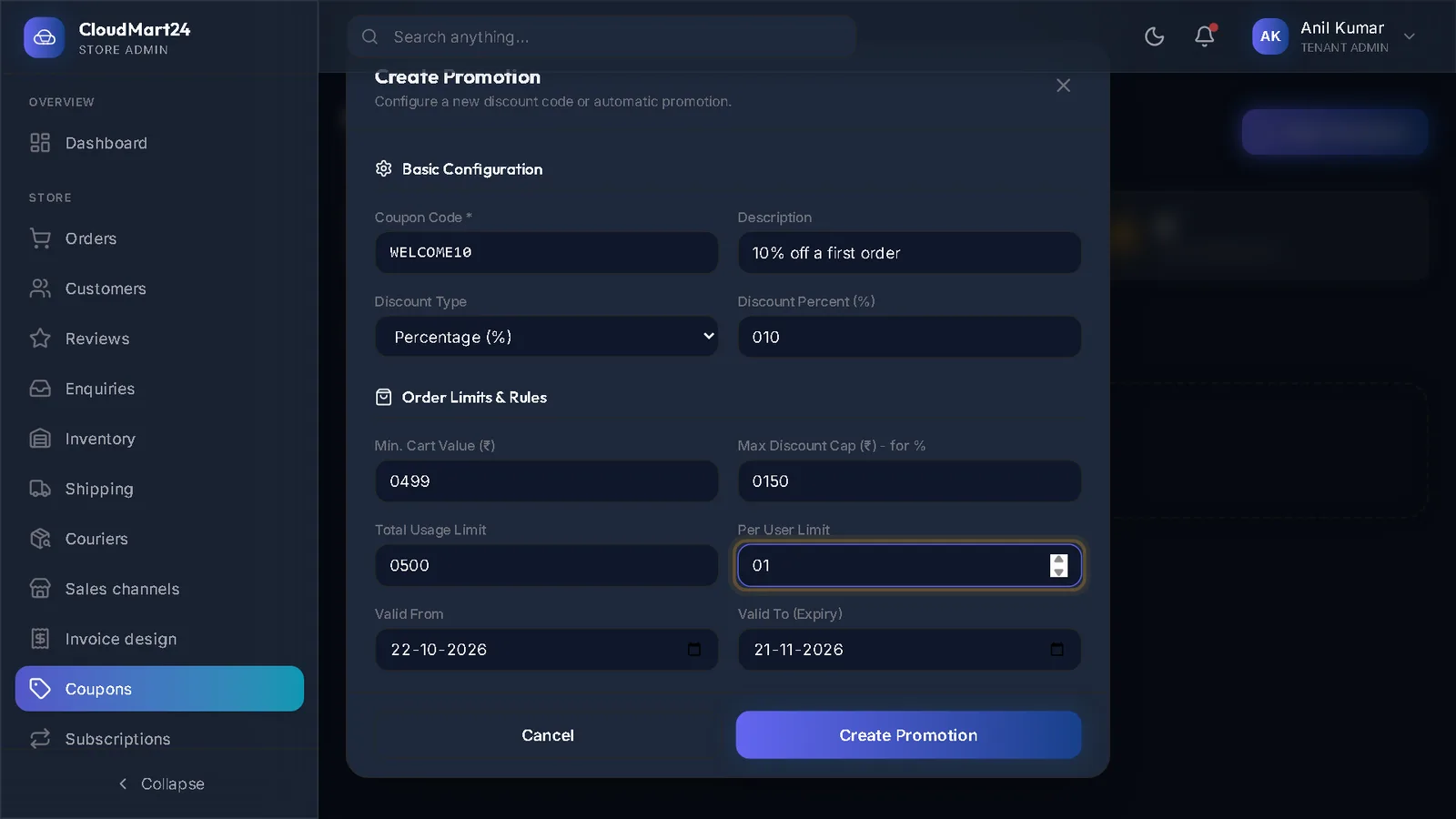
Careful: The offer code must also exist under Coupons, or shoppers will be told it does not work.
- 3
Choose when it appears
Appears after a few seconds, after scrolling or when a shopper is about to leave. How often one shopper sees it, On which pages and Show to keep it from getting annoying; From and Until limit it to the offer’s dates.
- 4
Check and publish
The eye button shows the popup in the preview. Switch Show this popup in the shop on and press Publish.
Stuck on a step?
Book a short call and we will walk through it with your own shop on screen. Book a call