Jump to a step
The video has no sound: the captions on screen explain each step, and every step is written out below with a picture.
- 1
See what has changed
On the Pages tab every page shows its state: Live, Changes (edited since it was published), Draft or Not started.
- 2
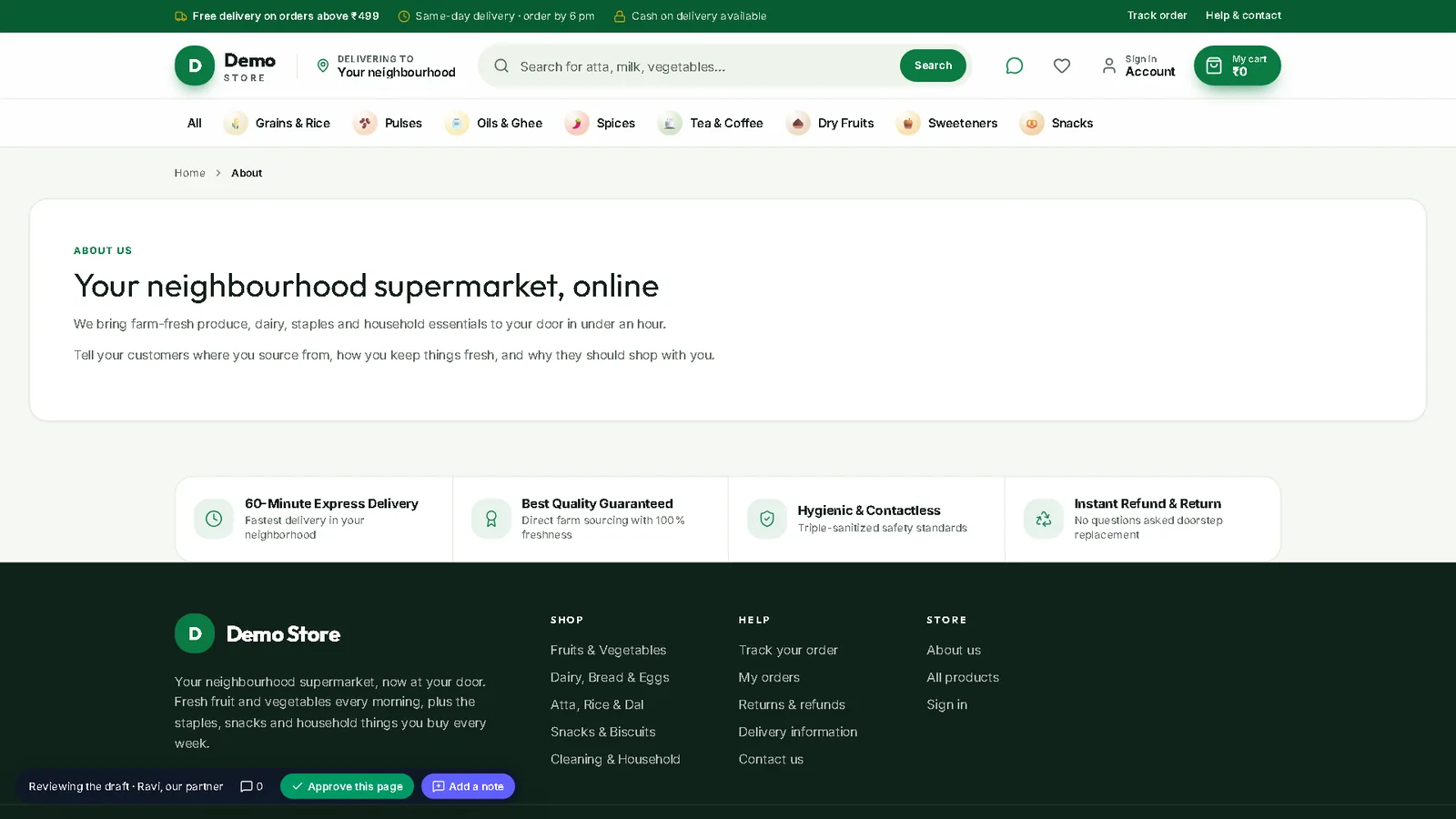
Preview the whole shop
The Preview tab shows your real shop with your unpublished changes, as a Phone, Tablet, Laptop or Wide screen.
- 3
Send someone a preview link
Preview link copies a link that shows your draft to anyone for one hour — a partner or a client can look on their own phone.
- 4
Publish everything at once
Publish all (N) publishes every changed page together. Discard all throws all unpublished changes away.
- 5
Publish a page later, or go back
The … button on a page card has Publish later… (pick a date and time) and Earlier versions, where every published version can be compared and Restored.
Discard changes puts the page back as it is in the shop.
Stuck on a step?
Book a short call and we will walk through it with your own shop on screen. Book a call