Jump to a step
The video has no sound: the captions on screen explain each step, and every step is written out below with a picture.
- 1
Open Quick edit
Open Studio on your phone and tap the Quick edit banner. The list shows your pages and whether each is live.
- 2
Open a page
Tap a page. Each section is a card with Move up, Move down, Hide, Dates and Edit.
- 3
Change a section
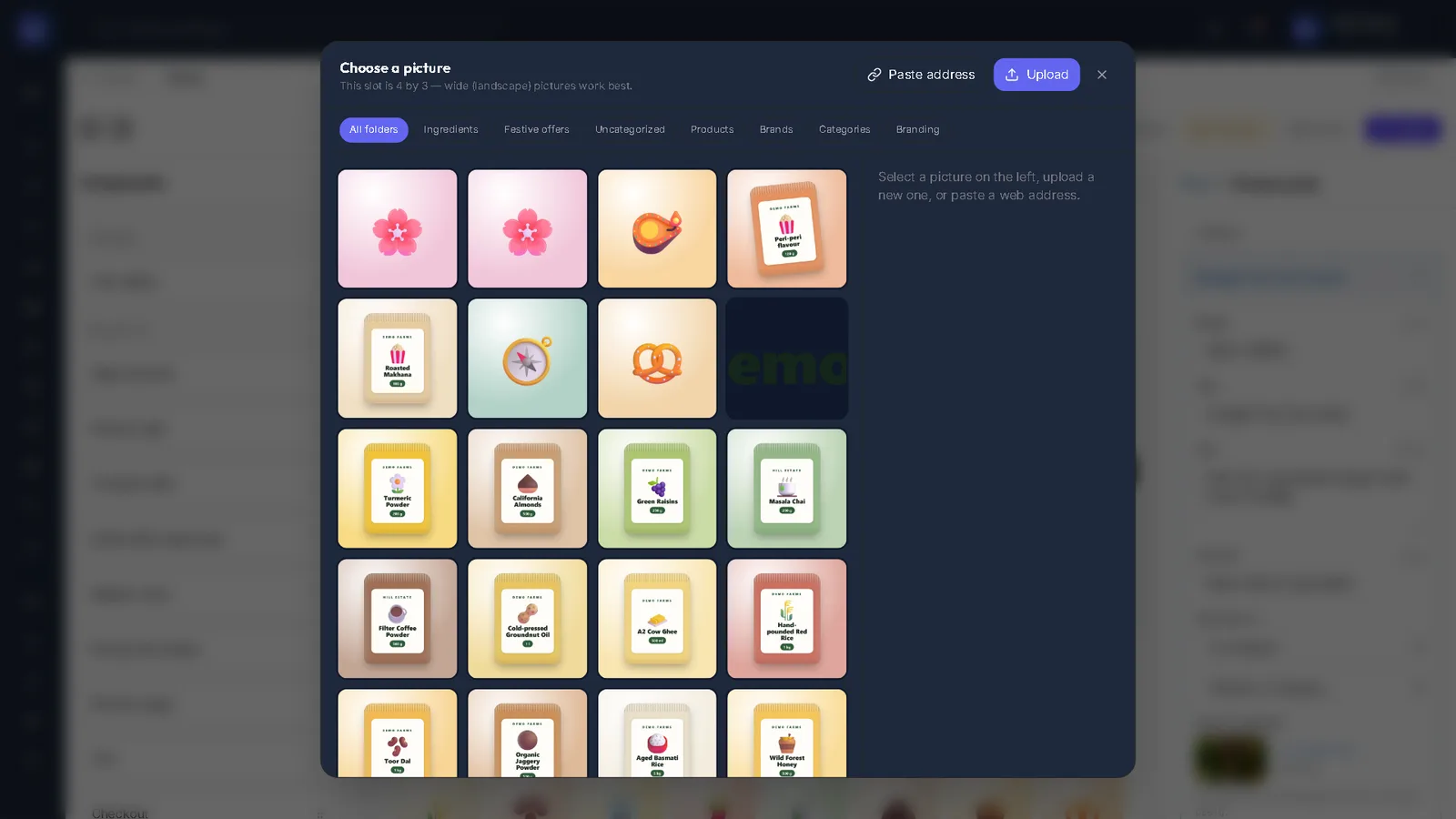
Tap Edit to change its words. Change picture opens your phone’s camera or gallery.
- 4
Preview and publish
Changes save as a draft. Preview opens the shop with them; Publish puts them live.
Stuck on a step?
Book a short call and we will walk through it with your own shop on screen. Book a call