Jump to a step
The video has no sound: the captions on screen explain each step, and every step is written out below with a picture.
Before you start
- Your logo, if you have one (a PNG or JPG; a square or wide picture both work).
- 1
Pick a design
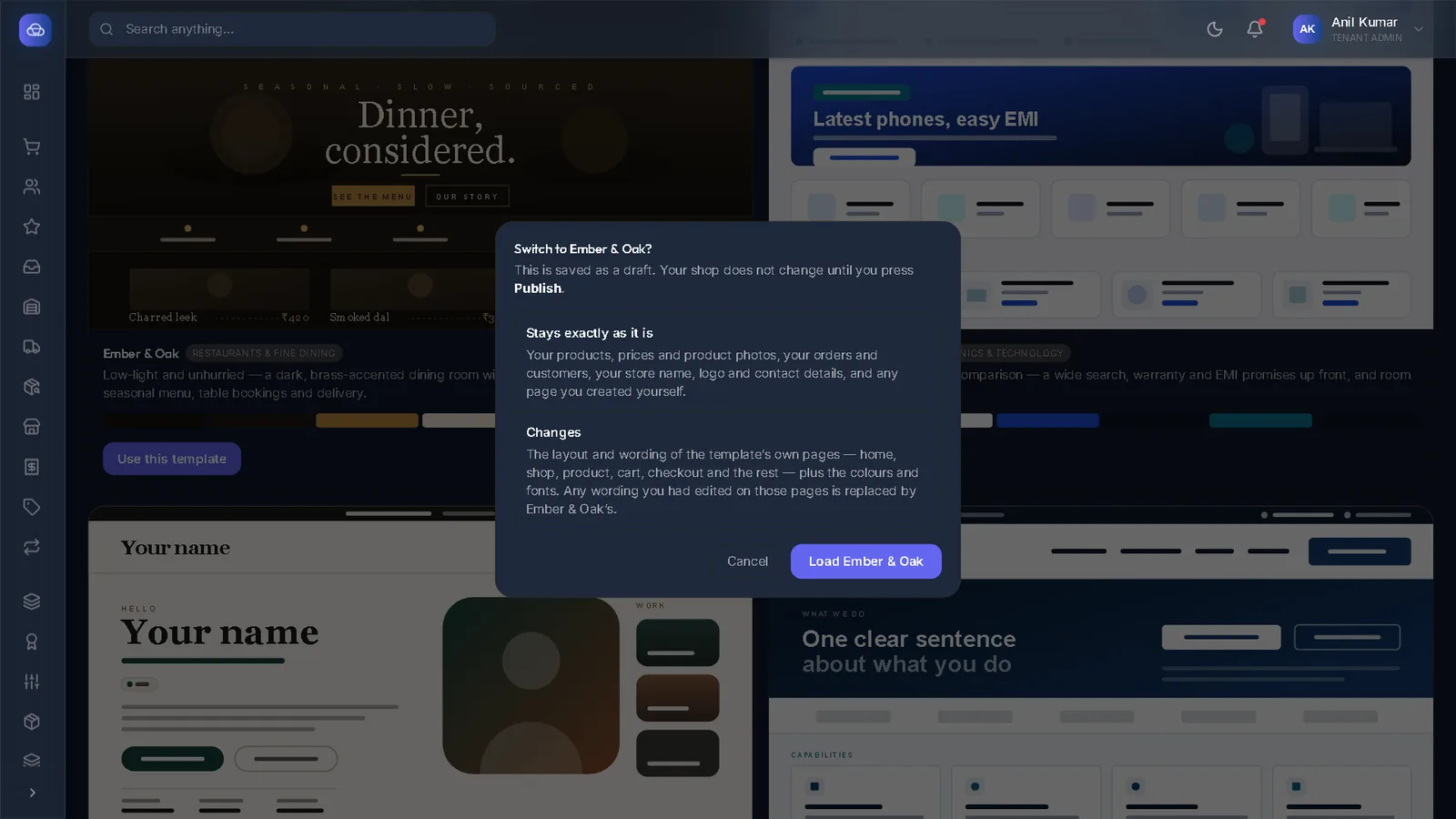
Each card is a complete shop design made for one kind of business — a supermarket, a beauty brand, a restaurant, electronics, a freelancer, a company or local services. Click the one closest to yours, then press Continue.
The design decides the layout. Every word, picture and colour in it can be changed afterwards.
- 2
Add your store details
Under Your details, upload your logo with Upload logo, then fill Store name, Phone, WhatsApp number, Email and Address.
These appear in your shop’s header, footer and contact page. Press Continue.
- 3
Choose your colours and fonts
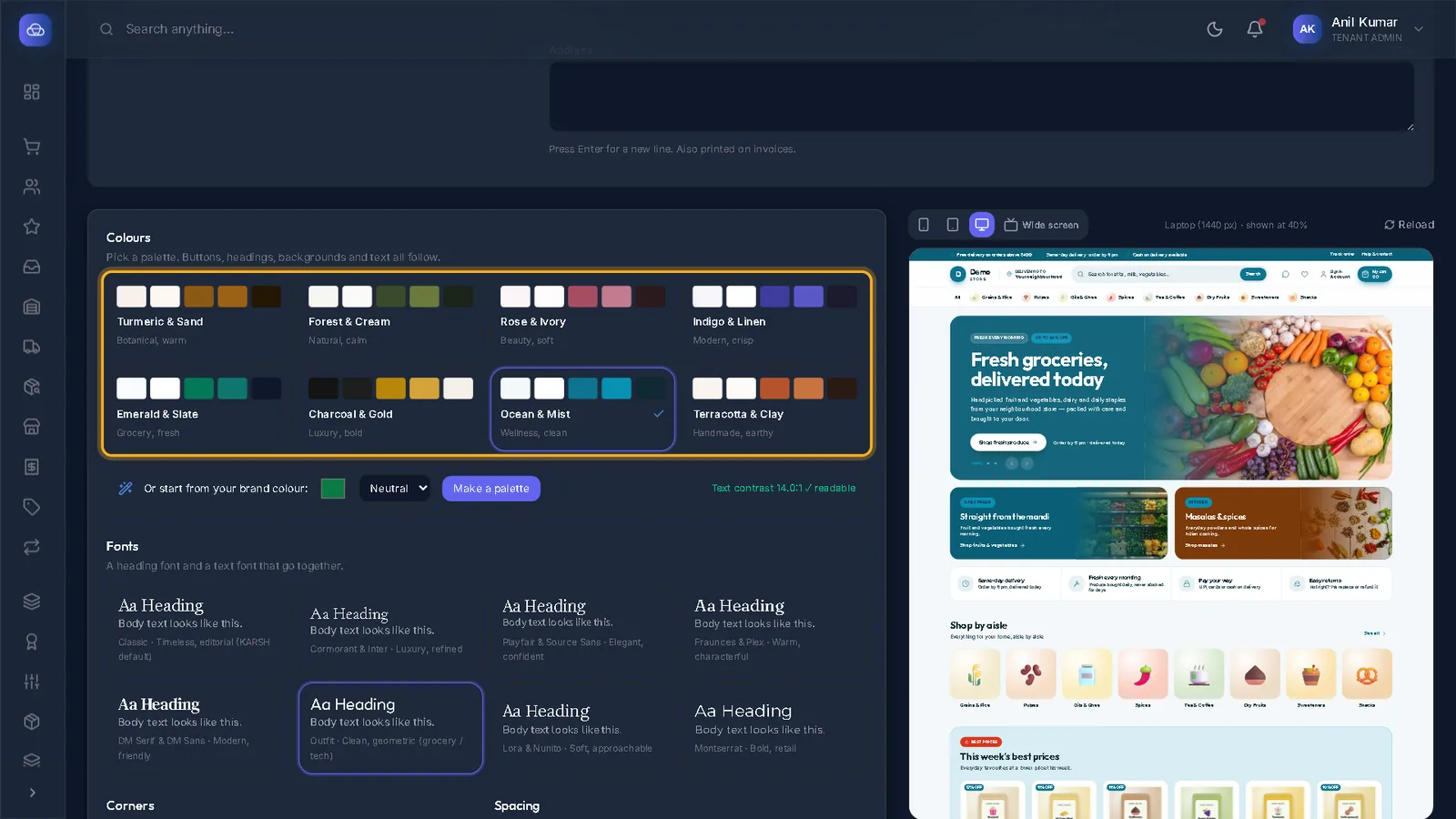
Pick one of the eight ready palettes, or start from your brand colour with the colour picker and press Make a palette.
Below the colours you can choose the fonts, how round the corners are, the spacing and the text size. Every choice shows at once in the sample. Press Continue when you like it.
- 4
Check and create your shop
Go live shows your choices — Design, Store and Colours. Press Back to change any of them, or Create my shop.
Careful: Create my shop publishes straight away: anyone with your address can now see the shop. Add your products next so it is not empty for long.
- 5
Your shop is live — what next
The last screen, Your shop is live, offers three next steps: Add your products, Turn on payments and Set up delivery.
See my shop opens it as a shopper sees it; Start editing pages opens Studio, where you change any page.
What happens next
- Follow the guides in Products & catalogue to add what you sell, then Payments to take online payments. Cash on delivery works from the start.
Questions
I pressed "Skip and set it up myself". Can I get the four steps back?
You do not need them: the same choices are in Studio — the design under Template, details and colours under Design.
Can I change the design later?
Yes, in Studio → Template. Before switching, Studio tells you what stays as it is and what changes.
Stuck on a step?
Book a short call and we will walk through it with your own shop on screen. Book a call