Jump to a step
The video has no sound: the captions on screen explain each step, and every step is written out below with a picture.
Before you start
- Your GSTIN and registered business name.
- 1
Open GST details
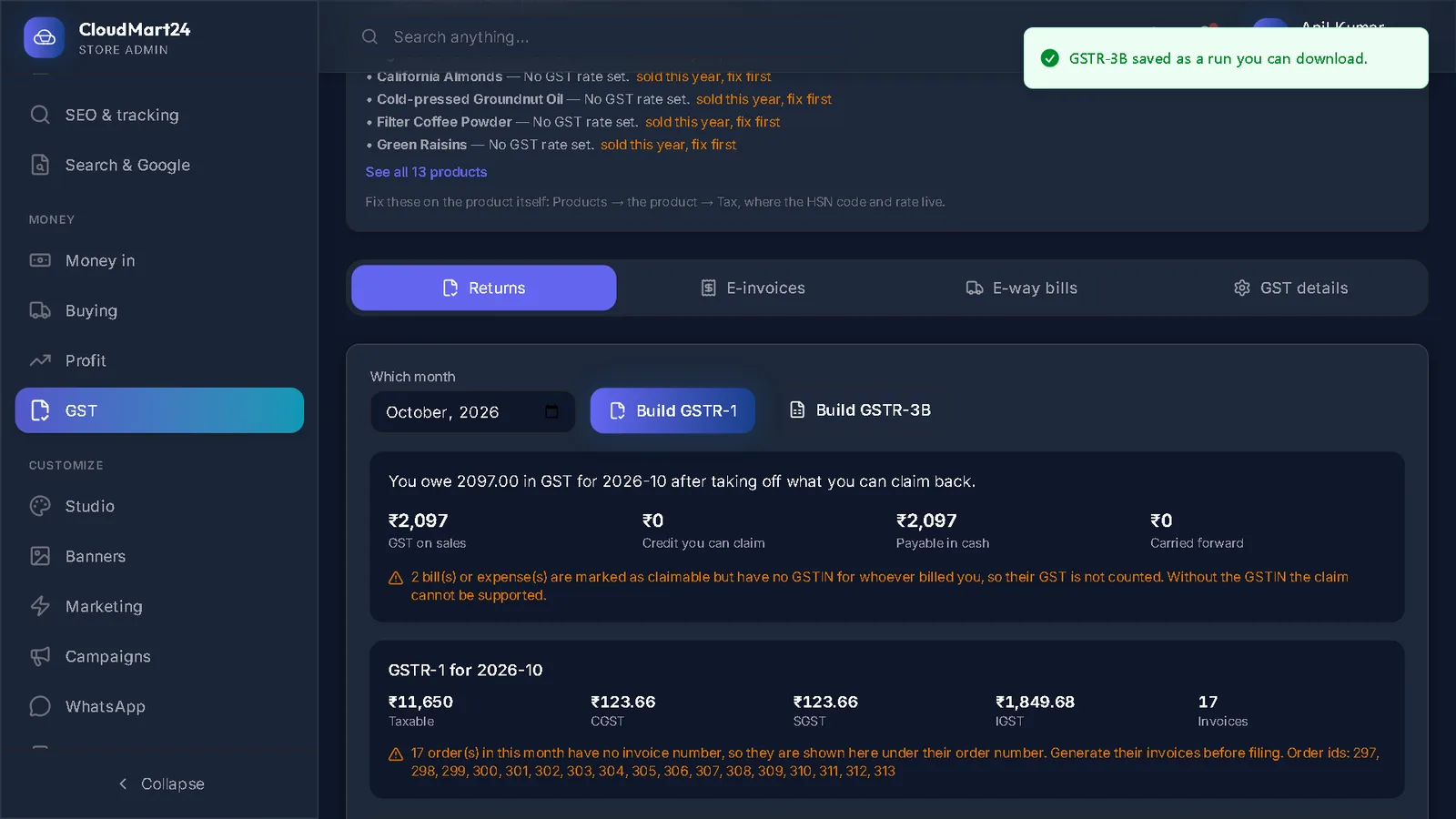
Open GST under Money and choose the GST details tab.
- 2
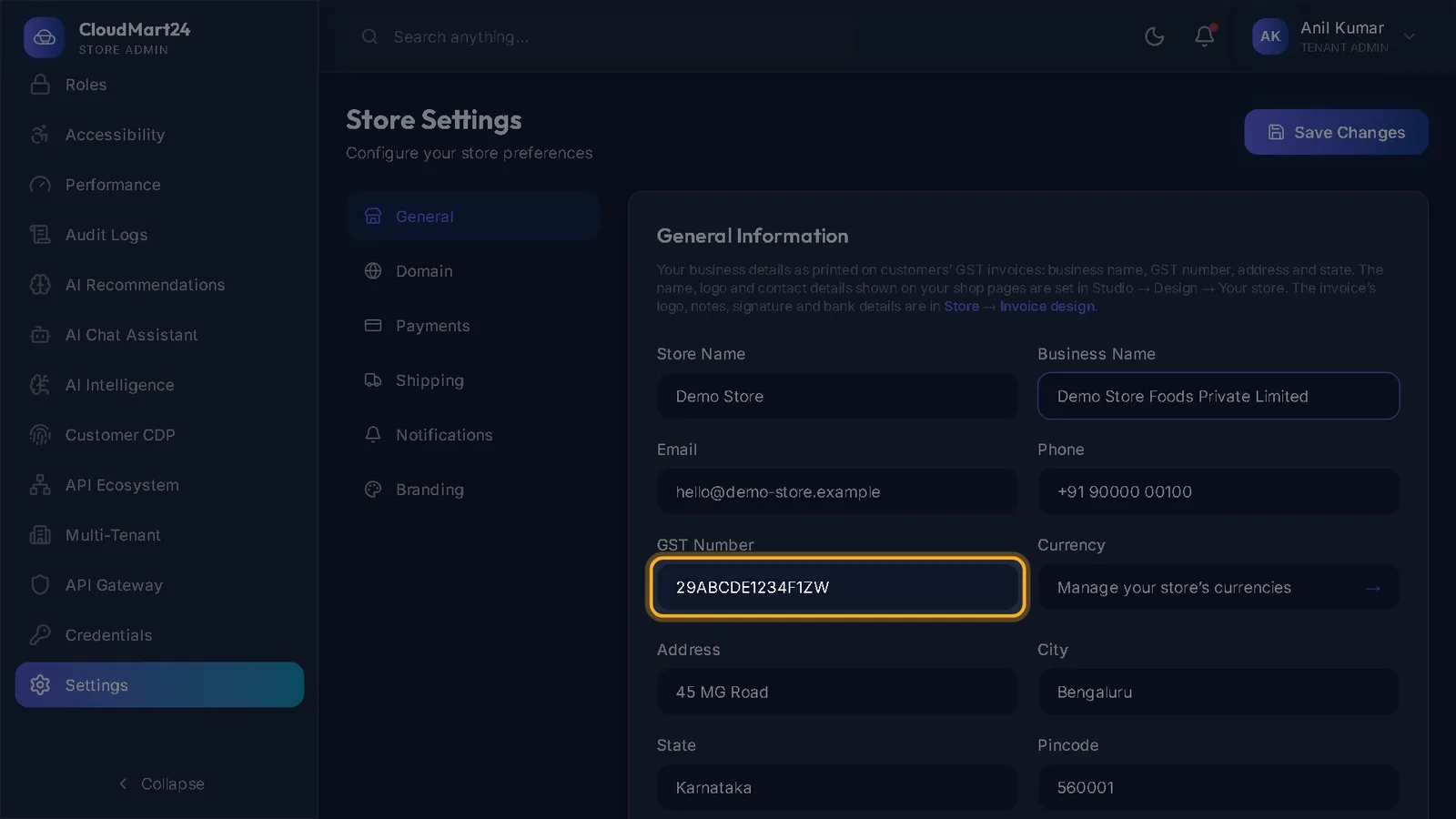
Fill your registration
Type your GSTIN and Registered business name. Choose Your turnover — the bands over ₹5 crore are marked as needing e-invoicing — and How often you file: Monthly or Quarterly (QRMP).
Press Save GST details.
- 3
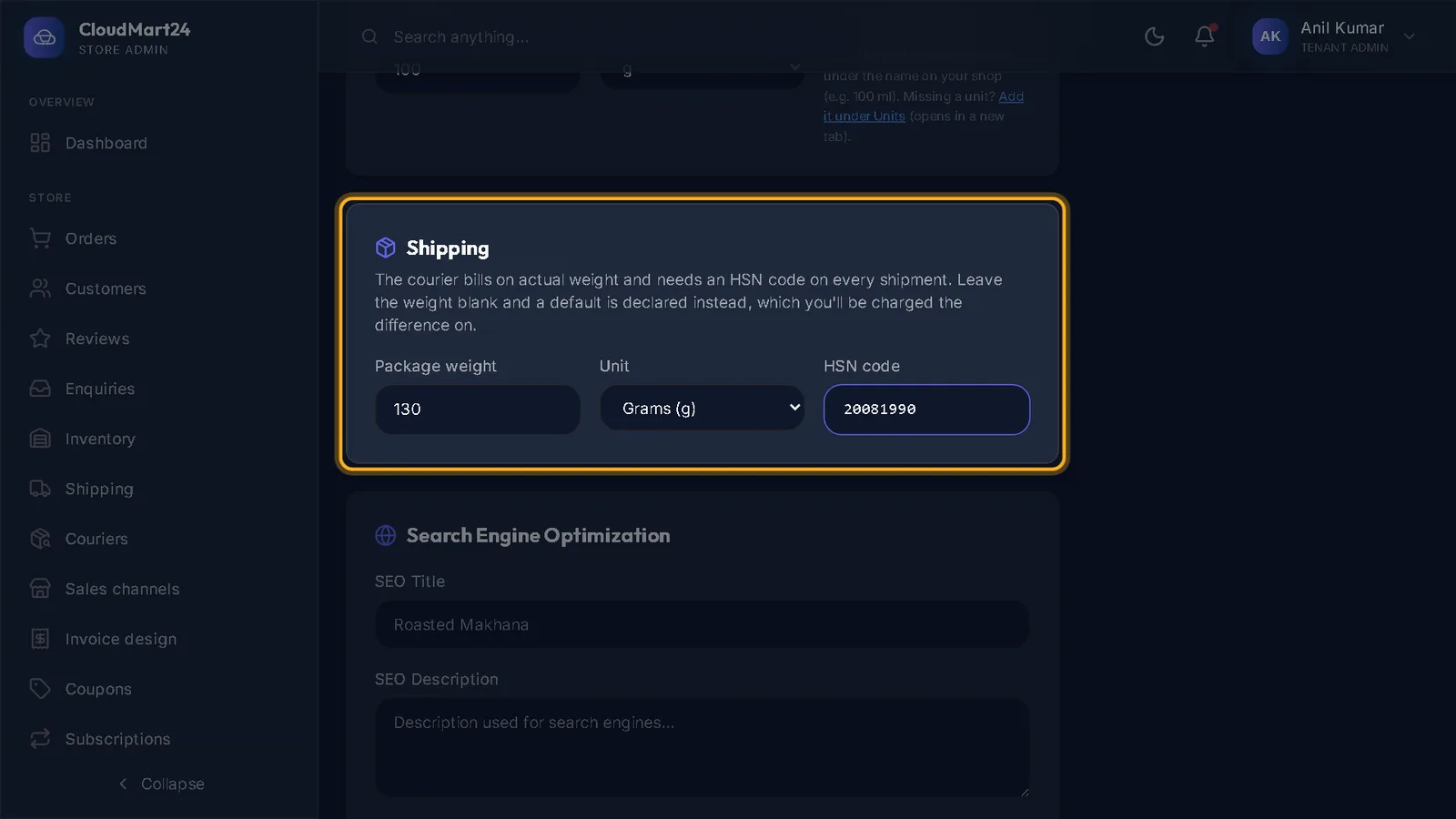
Give every product an HSN code
The box at the top of the GST page lists products with no HSN code. Open each one and fill the HSN code under Shipping in the product form.
Good to know: GST is charged at 18% unless a different rate has been set for an HSN code. If your products are taxed at 0%, 5% or 12%, ask CloudMart24 support to set the rates — there is no screen for it yet.
Stuck on a step?
Book a short call and we will walk through it with your own shop on screen. Book a call