Jump to a step
The video has no sound: the captions on screen explain each step, and every step is written out below with a picture.
- 1
Open Inventory
Open Inventory under Store and choose the Stock Levels tab. Each product shows how many are available.
- 2
Adjust a count
Press Adjust on the product. Choose Add (IN) for stock that arrived or Remove (OUT) for stock that is gone, type the Quantity and a reason in Notes, and press Confirm.
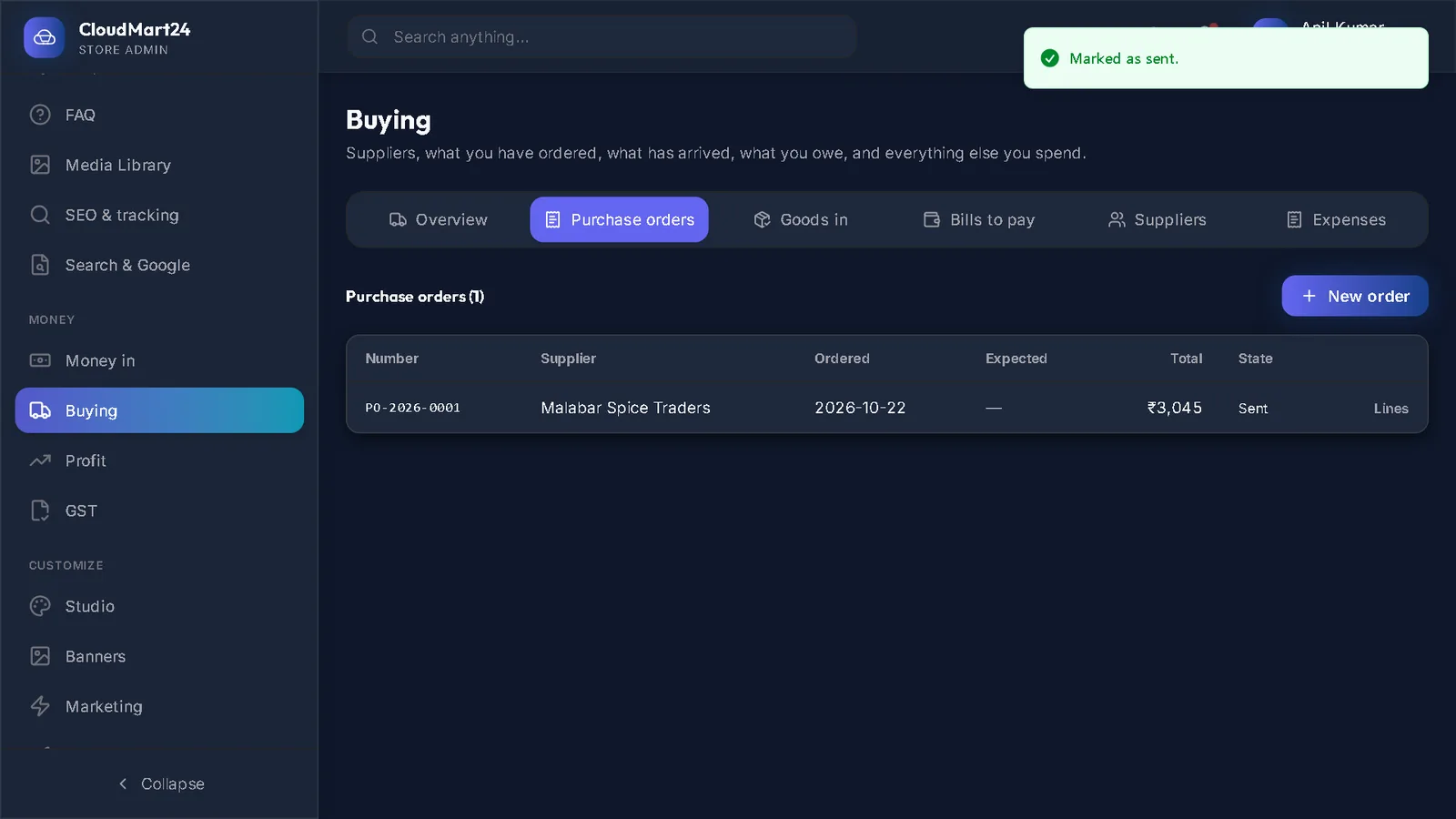
Tip: Stock bought from a supplier is better recorded under Money → Buying → Goods in: it adds the stock and records what it cost, for your profit figures.
- 3
See what changed
The Movements tab lists every change — orders, adjustments and goods received — with its date and reason.
- 4
Add a warehouse
If you keep stock in more than one place, the Warehouses tab has Add Warehouse: a name, a short code, the city and state.
Questions
The Total Stock Value figure looks wrong.
It is an estimate, not worked out from your cost prices yet. For real values use Money → Profit → By product.
Stuck on a step?
Book a short call and we will walk through it with your own shop on screen. Book a call